LinkedIn Two-Factor Authentication (2FA) Setup Guide
This document explains how to enable Two-Factor Authentication (2FA) on LinkedIn using your LinkedIn credentials. It covers the complete setup process from start to finish.
Prerequisites
Before starting, ensure the following:
- Active LinkedIn account with valid email and password
- Access to your LinkedIn account on a browser
- Access to your registered mobile device or LinkedIn mobile app
- Stable internet connection
Step 1: Open Settings & Privacy
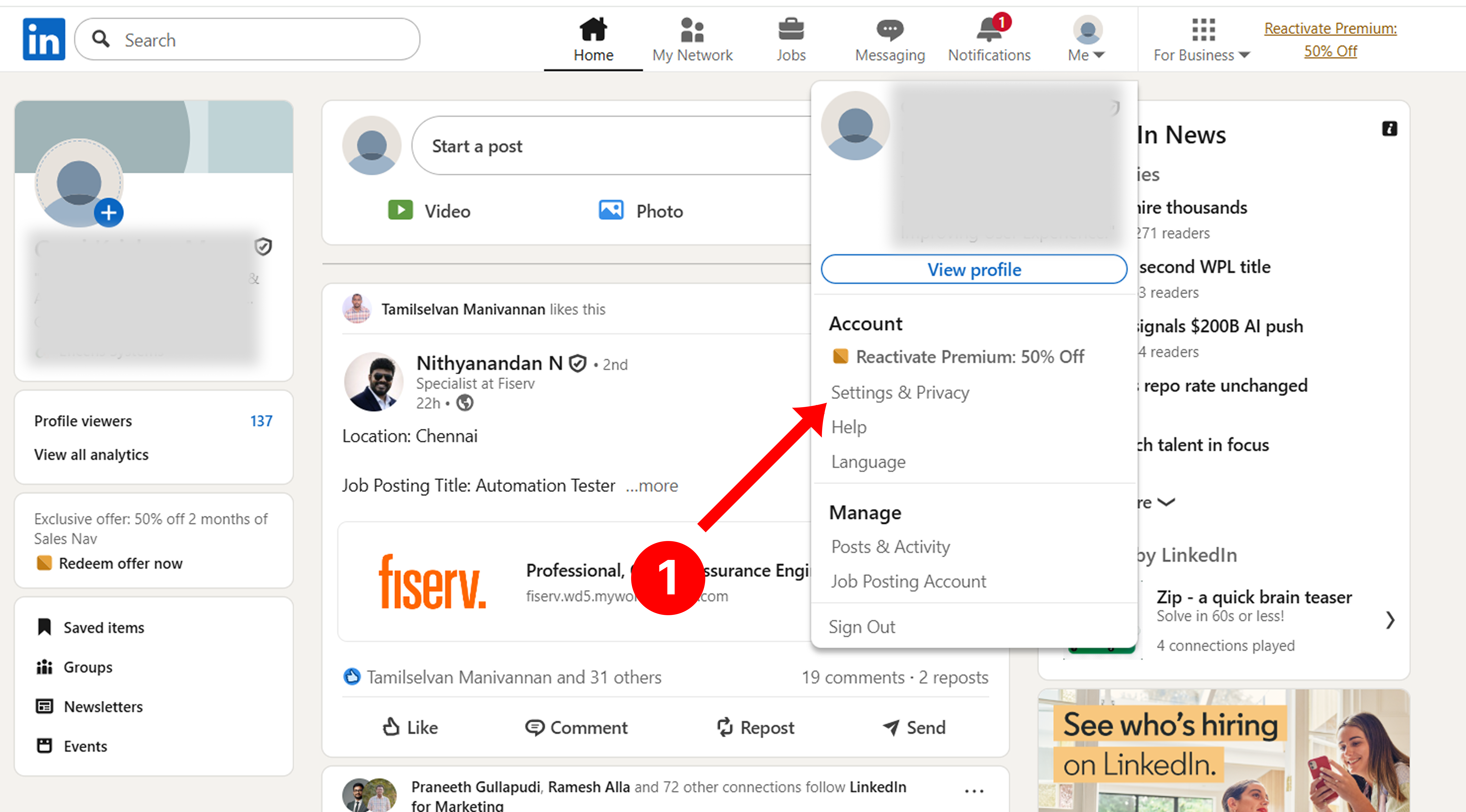
- Click on your profile icon (Me) in the top-right corner of the LinkedIn homepage.
- Select Settings & Privacy from the dropdown menu.
Step 2: Go to Sign in & Security
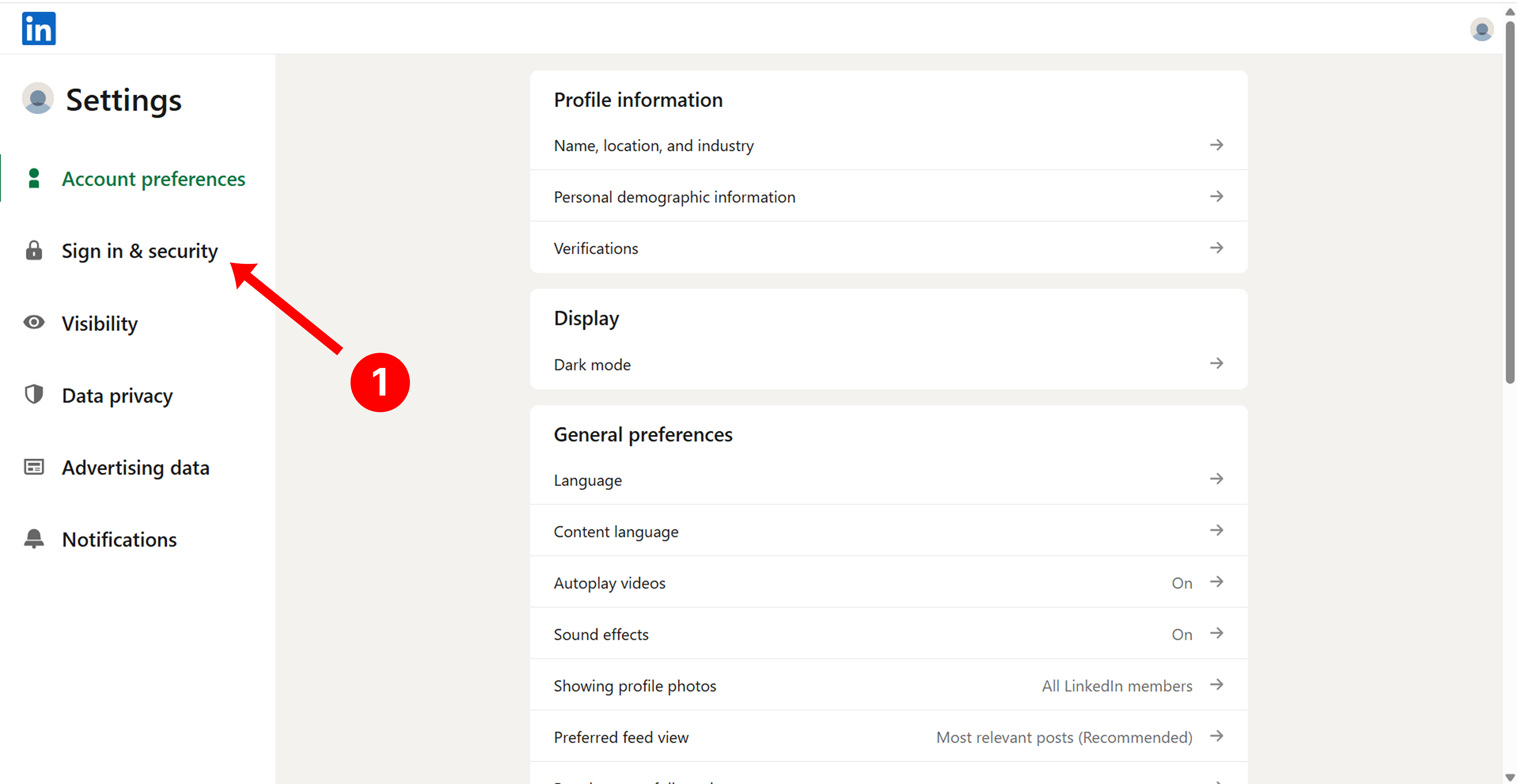
- In the left-side navigation menu, click Sign in & security.
Step 3: Open Two-Factor Authentication
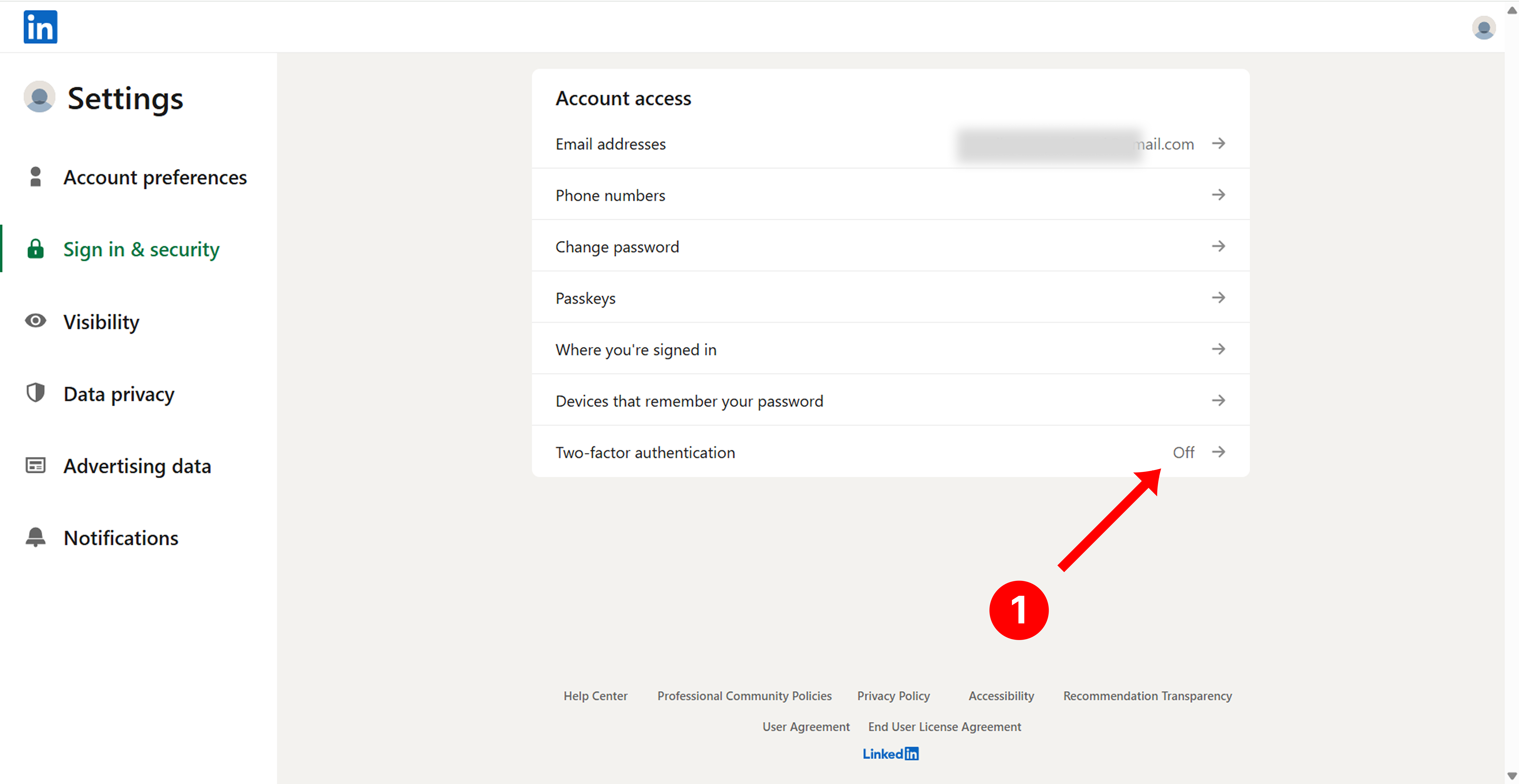
- Under Account access, locate Two-factor authentication.
- Verify the status shows Off.
- Click Two-factor authentication.
Step 4: Start 2FA Setup
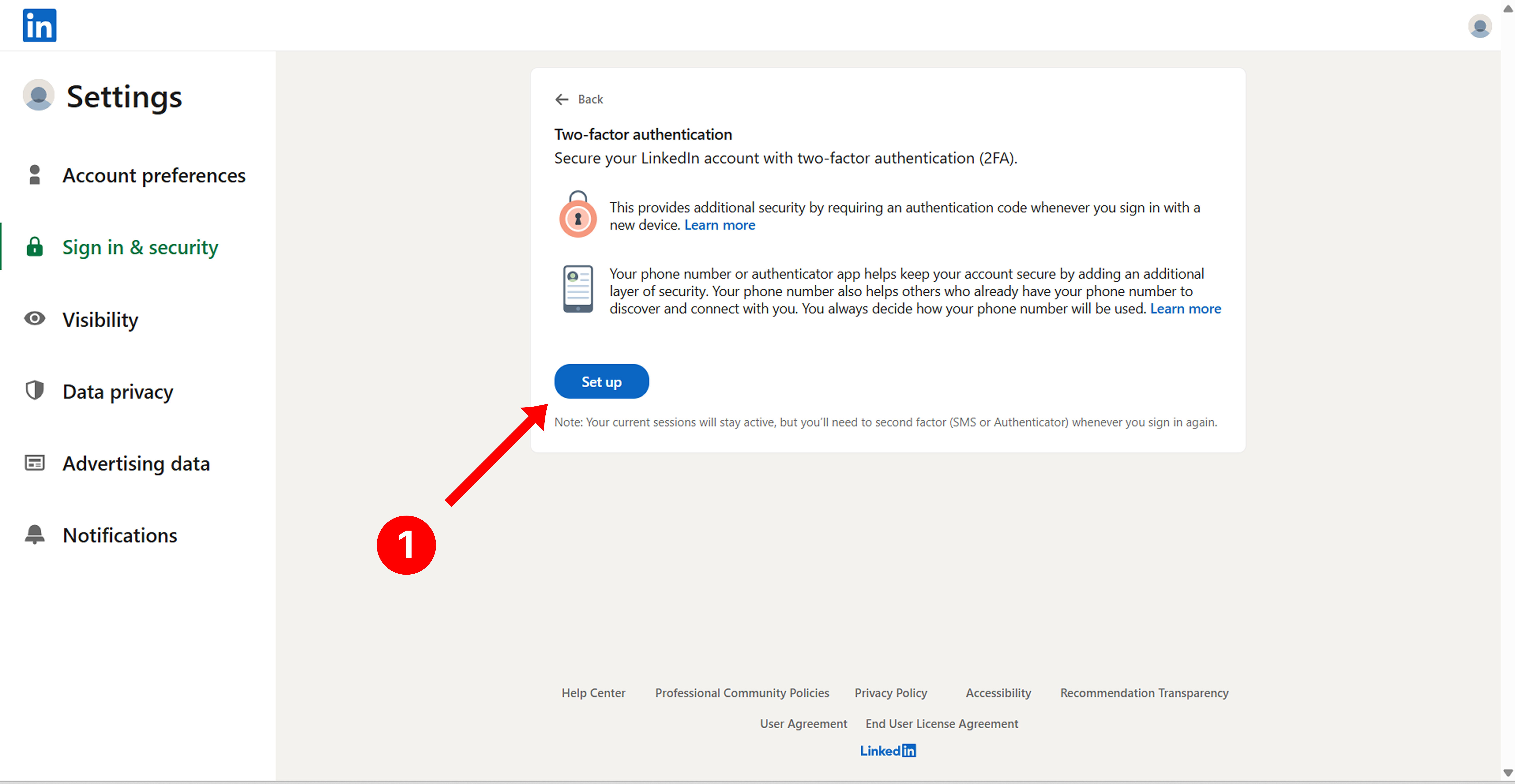
- On the Two-factor authentication page, click Set up.
Step 5: Verify Device Ownership
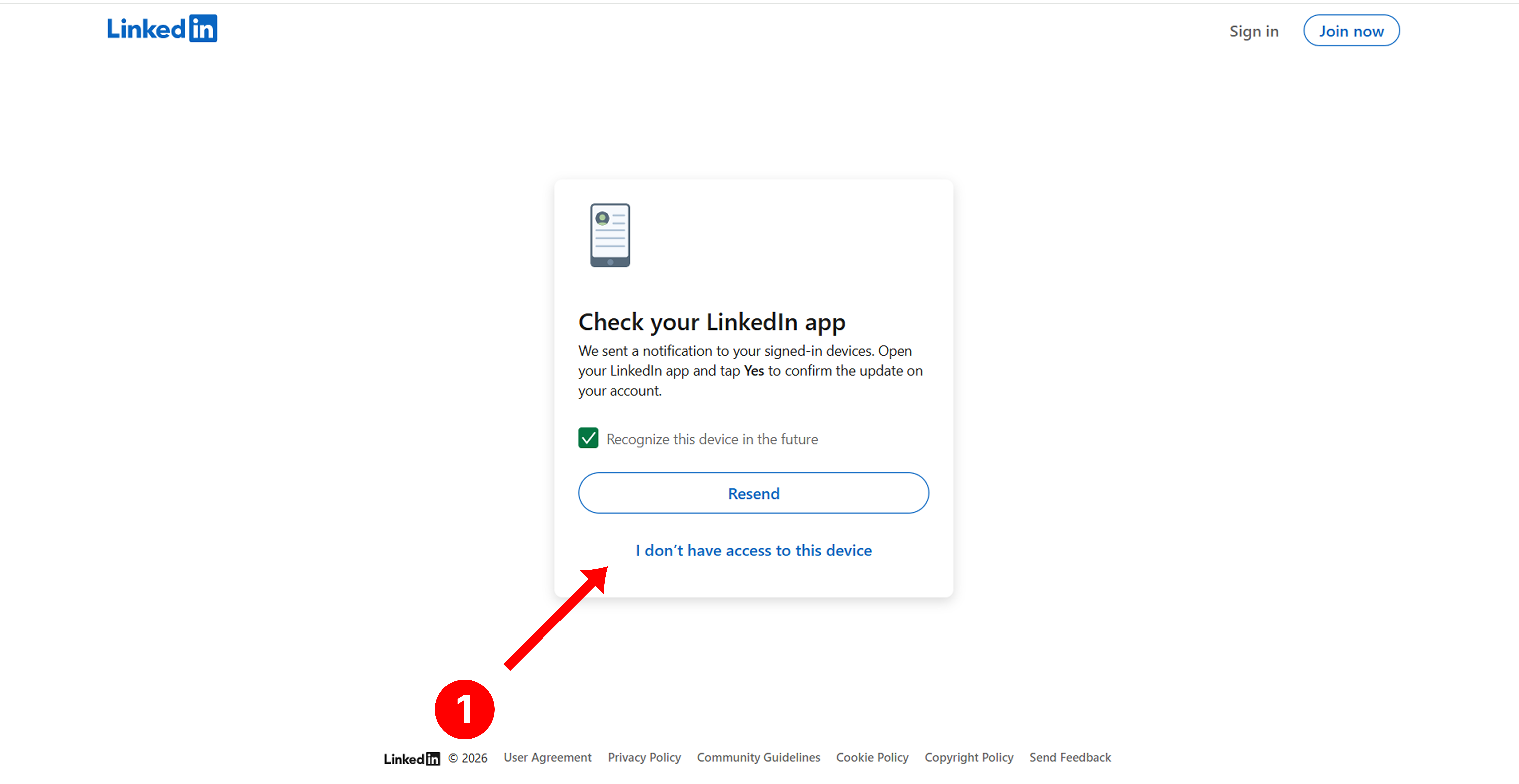
- A screen appears prompting Check your LinkedIn app.
- Open the LinkedIn app on your signed-in mobile device.
- Tap Yes to approve the request.
- If you do not have access to the device, click I don't have access to this device.
Step 6: Choose Authentication Method
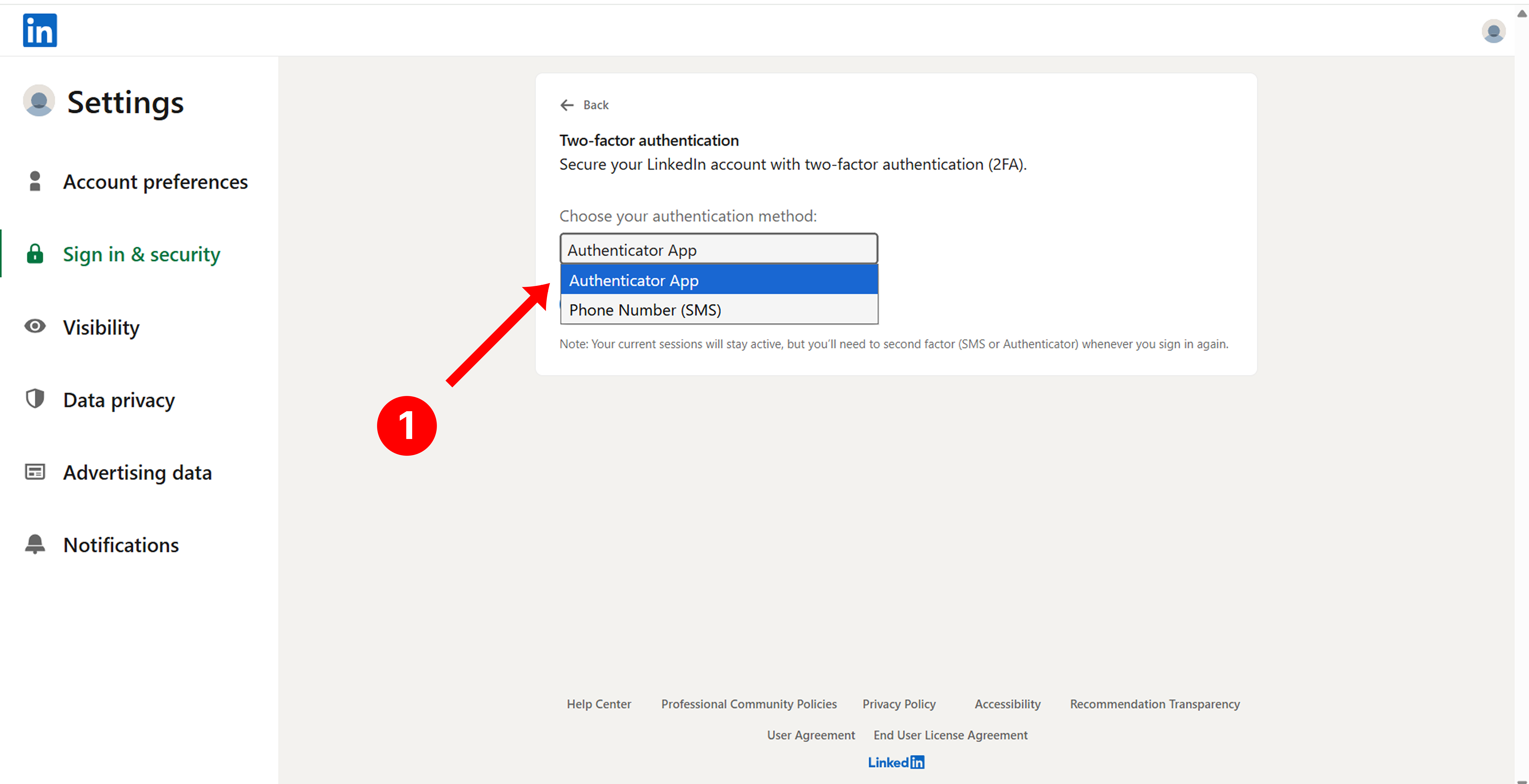
- On the Choose your authentication method screen, open the dropdown.
- Select Authenticator App.
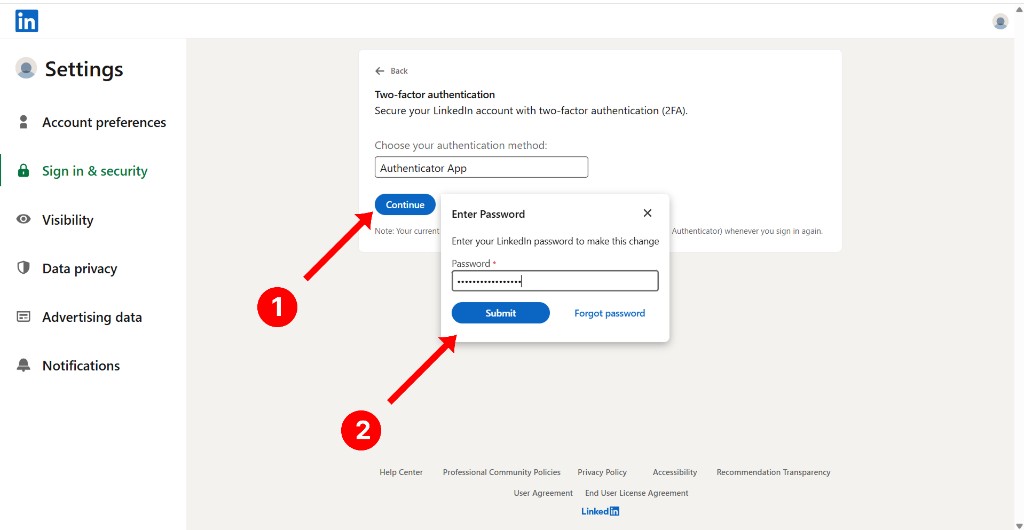
- Click Continue.
Step 7: Confirm Account Password
- Enter your LinkedIn account password in the password prompt.
- Click Submit.
Step 8: Scan QR Code Using Authenticator App
Important — Save Your 2FA Secret Key
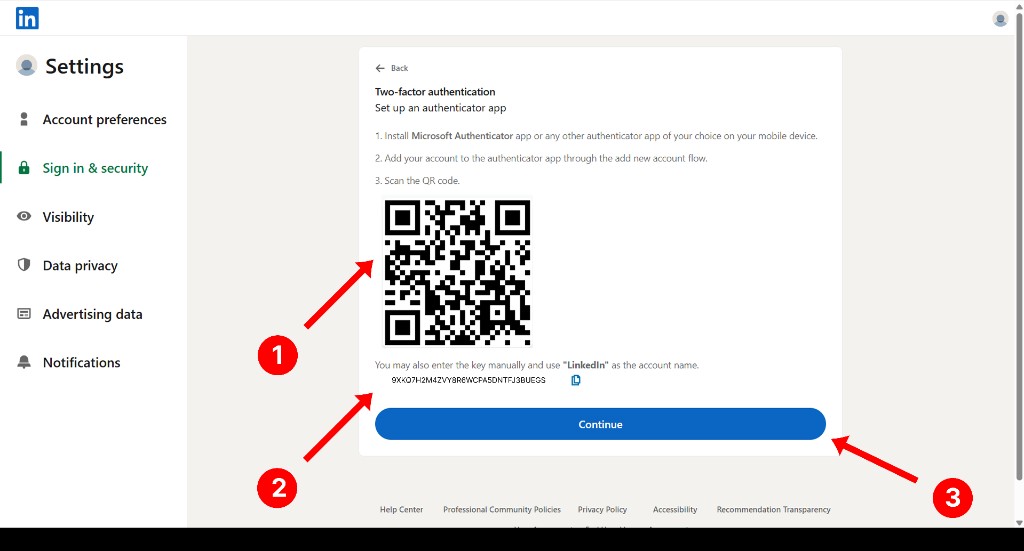
The 2FA Secret Key displayed below the QR code is required when connecting your AI SDR in the Wyra application. Copy and store it securely.
- Install an authenticator app (e.g., Microsoft Authenticator) on your mobile device.
- Open the authenticator app and choose Add new account.
- Scan the QR code displayed on the LinkedIn screen.
- Copy the 2FA Secret Key displayed below the QR code.
- Store the copied 2FA Secret Key in a secure and safe location.
- In the Wyra Connect LinkedIn form, paste this key into the 2FA Secret Key field.
- Alternatively, you may manually enter the setup key into the authenticator app.
- Click Continue.
tip
This 2FA Secret Key will be required later while connecting your AI SDR in the WYRA application. Keep it safe!
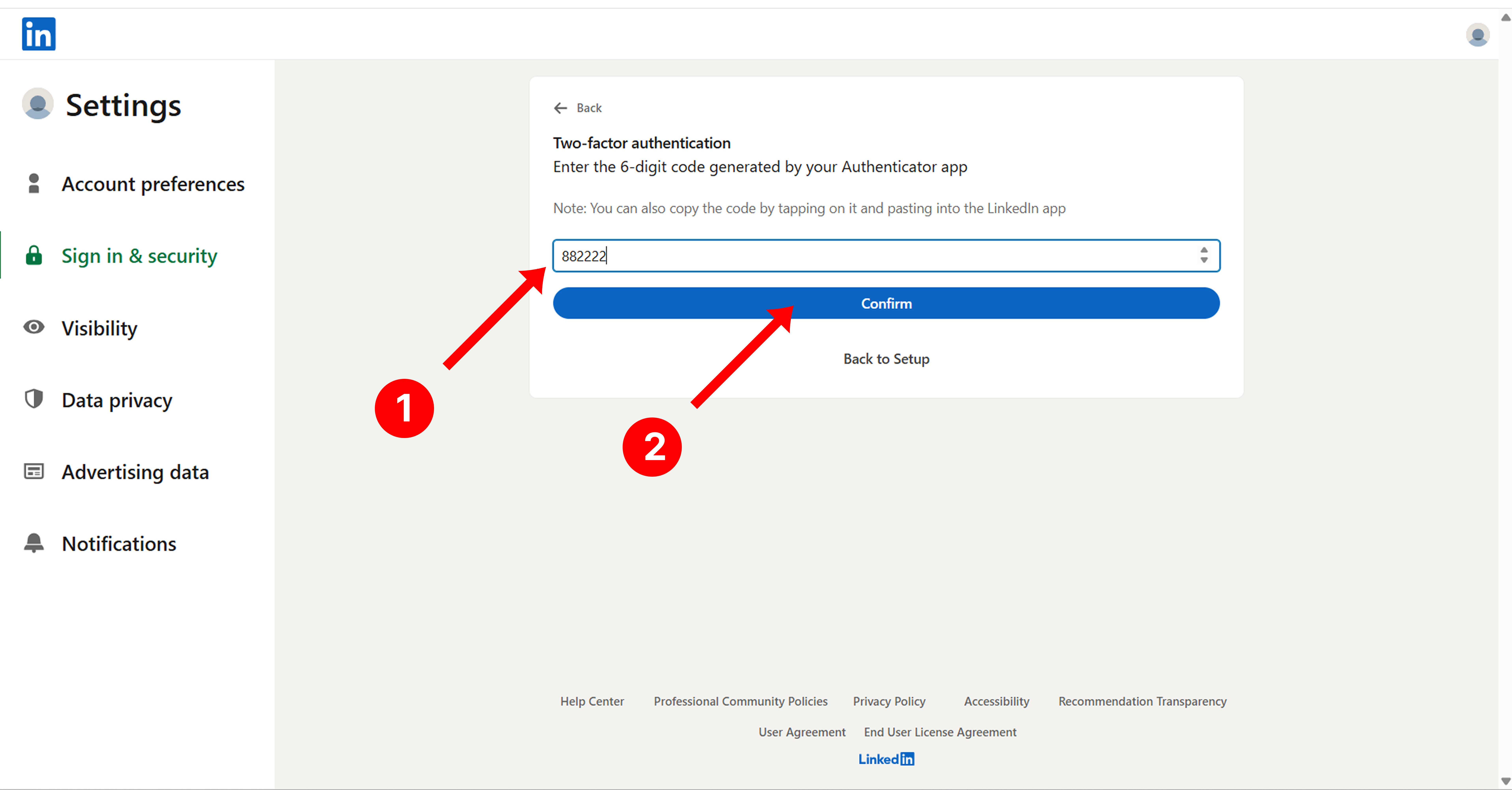
Step 9: Enter Authentication Code
- Enter the 6-digit code generated by the authenticator app.
- Click Confirm.
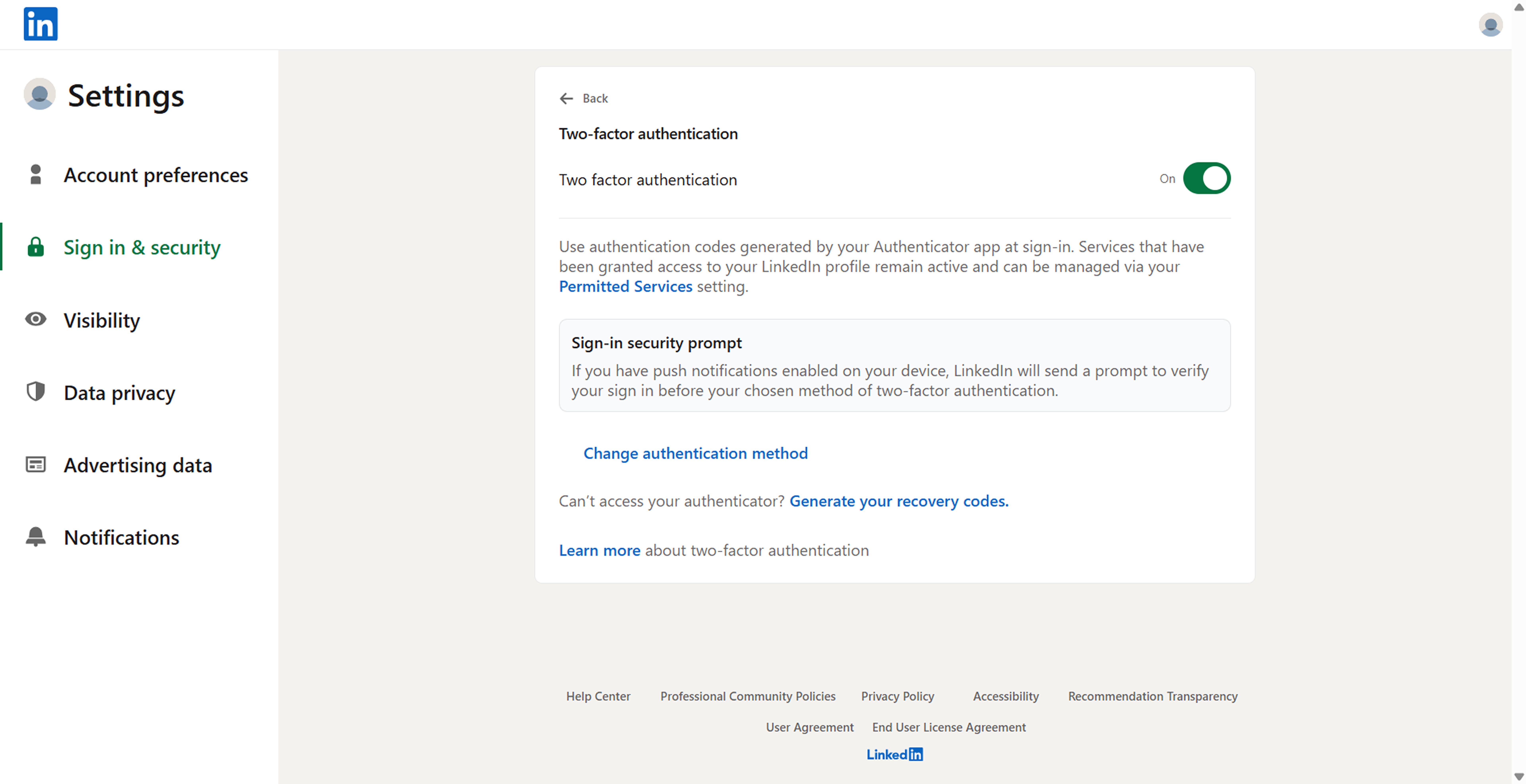
Step 10: Verify 2FA Is Enabled
- Confirm that Two-factor authentication is toggled On.
Using the 2FA Key in Wyra
Once you have your 2FA Secret Key:
- Go to the AI SDR section in Wyra
- Click Connect on your agent card
- Enter your LinkedIn email and password
- Paste the 2FA Secret Key in the designated field
- Select your country and click Connect
Your AI SDR agent will now be able to operate on LinkedIn using your connected account.
Troubleshooting
| Issue | Solution |
|---|---|
| Lost 2FA Secret Key | You'll need to disable and re-enable 2FA on LinkedIn to get a new key |
| Authenticator code not working | Ensure your device clock is synced correctly |
| Can't find 2FA settings | Navigate to LinkedIn > Settings > Sign in & Security > Two-factor authentication |